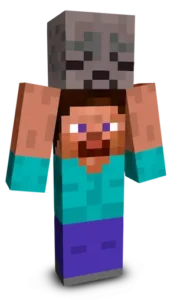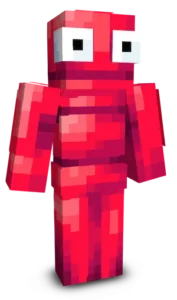
SpongeBob SquarePants jumps into Minecraft with his classic cheerful look straight from Bikini Bottom. Featuring his bright yellow sponge body, big blue eyes, white shirt, red tie, and brown shorts, this skin perfectly captures his joyful and goofy personality. Ideal for fans of cartoons and fun roleplay, it brings positivity, humor, and nostalgia to every block you place and every adventure you start.
 Tags
Tags
To change your character's skin in Minecraft Java Edition, follow these steps:
- Open your web browser and go to the official Minecraft website: https://www.minecraft.net/.
- Log in with your Minecraft account if you haven't already.
- At the top of the website, you will see the "Skins" option. Click on it.
- Here, you can choose from several options:
- New Skin: Upload a custom skin from your computer.
- Change to Steve: Change your skin to the default Steve appearance.
- Change to Alex: Change your skin to the default Alex appearance.
- Browse Skins: Explore and select a skin from Minecraft's official gallery.
- If you choose "New Skin," select the image file of your new skin from your computer. The skin should be in PNG format and follow the appropriate dimensions.
- After selecting or uploading the skin, click the "Upload" or "Change My Skin" button to apply the new skin to your character.
- Open the Minecraft game and check that the new skin has been applied correctly.