logo responsive
/

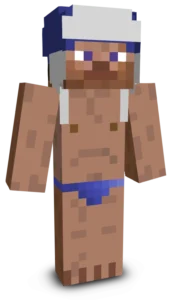
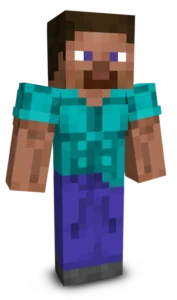
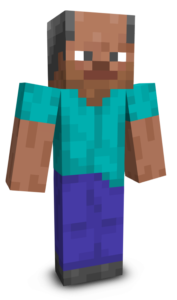
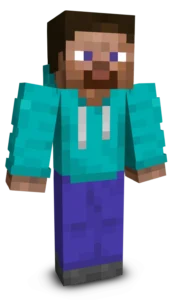
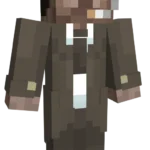
Detective Steve Minecraft Skin

Detective Steve reimagines Minecraft’s iconic character as a seasoned private investigator with a classic noir style. Wearing a dark detective outfit and carrying the tired expression of someone who has spent countless nights chasing clues, this skin captures the atmosphere of old-school mystery stories. The rugged appearance and subtle details give Steve a completely different personality while still keeping him instantly recognizable.

Perfect for roleplay servers, city maps, adventure worlds, or crime-themed builds, Detective Steve fits naturally into any setting where mystery and investigation take center stage. Whether you are solving puzzles, exploring abandoned locations, or simply looking for a unique alternative to the default skin, this design adds a stylish and cinematic touch to your Minecraft adventures. If you enjoy detective aesthetics and classic noir-inspired characters, Detective Steve is an excellent addition to your skin collection.
To change your character's skin in Minecraft Java Edition, follow these steps:

  • Open your web browser and go to the official Minecraft website: https://www.minecraft.net/.
  • Log in with your Minecraft account if you haven't already.
  • At the top of the website, you will see the "Skins" option. Click on it.
  • Here, you can choose from several options:
    • New Skin: Upload a custom skin from your computer.
    • Change to Steve: Change your skin to the default Steve appearance.
    • Change to Alex: Change your skin to the default Alex appearance.
    • Browse Skins: Explore and select a skin from Minecraft's official gallery.
  • If you choose "New Skin," select the image file of your new skin from your computer. The skin should be in PNG format and follow the appropriate dimensions.
  • After selecting or uploading the skin, click the "Upload" or "Change My Skin" button to apply the new skin to your character.
  • Open the Minecraft game and check that the new skin has been applied correctly.