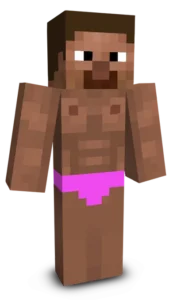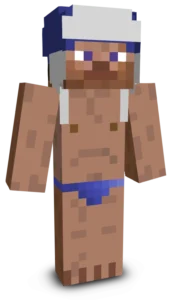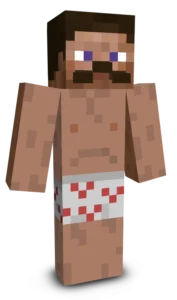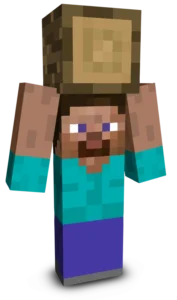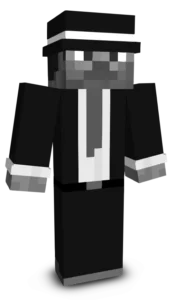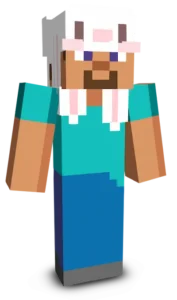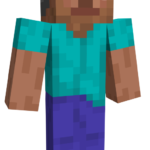
Old Steve shows a classic version of Minecraft’s main character but with an aged appearance. Featuring gray hair, a fuller beard, and a more mature look, this skin keeps the iconic blue shirt and purple pants while adding a wise and experienced vibe. It’s perfect for players who want a funny or unique twist on Steve, giving him a veteran look ready for new adventures.
 Tags
Tags
To change your character's skin in Minecraft Java Edition, follow these steps:
- Open your web browser and go to the official Minecraft website: https://www.minecraft.net/.
- Log in with your Minecraft account if you haven't already.
- At the top of the website, you will see the "Skins" option. Click on it.
- Here, you can choose from several options:
- New Skin: Upload a custom skin from your computer.
- Change to Steve: Change your skin to the default Steve appearance.
- Change to Alex: Change your skin to the default Alex appearance.
- Browse Skins: Explore and select a skin from Minecraft's official gallery.
- If you choose "New Skin," select the image file of your new skin from your computer. The skin should be in PNG format and follow the appropriate dimensions.
- After selecting or uploading the skin, click the "Upload" or "Change My Skin" button to apply the new skin to your character.
- Open the Minecraft game and check that the new skin has been applied correctly.